> ## Documentation Index
> Fetch the complete documentation index at: https://docs.teamate.app/llms.txt
> Use this file to discover all available pages before exploring further.
# Meetings
> Connect Zoom and Google Meet so Teamate learns from your meetings
## Overview
Teamate can connect to your Zoom and Google Meet accounts to ingest meeting summaries, smart notes, and transcripts. Once enabled, Teamate builds memory from your meetings — so it can answer questions about past calls, surface action items, and provide context directly in Slack.
Both Zoom and Google Meet follow the same setup flow.
***
## Connect Google Meet
On the **Workspace** page, click **Connect** on the Google Meet card.
You'll be redirected to Google's OAuth screen. Review the permissions and click **Continue**.
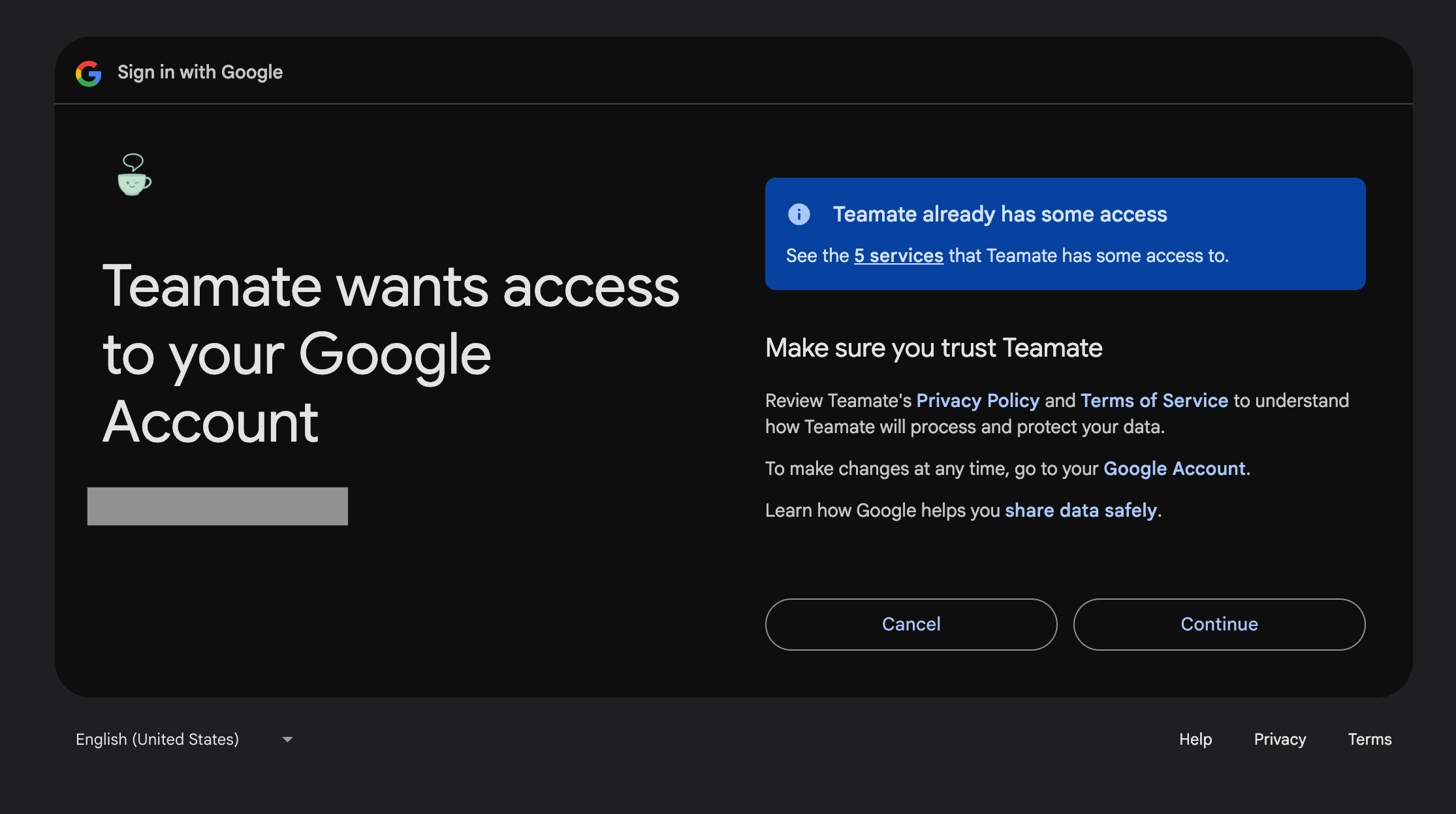 Once authorized, the Google Meet card will show as **Added**.
Zoom follows the same flow — click **Connect** on the Zoom card and authorize via Zoom's OAuth screen.
***
## Enable memory and add an instruction
After connecting, click **Settings** on the meeting card to configure memory and add a custom instruction.
Once authorized, the Google Meet card will show as **Added**.
Zoom follows the same flow — click **Connect** on the Zoom card and authorize via Zoom's OAuth screen.
***
## Enable memory and add an instruction
After connecting, click **Settings** on the meeting card to configure memory and add a custom instruction.
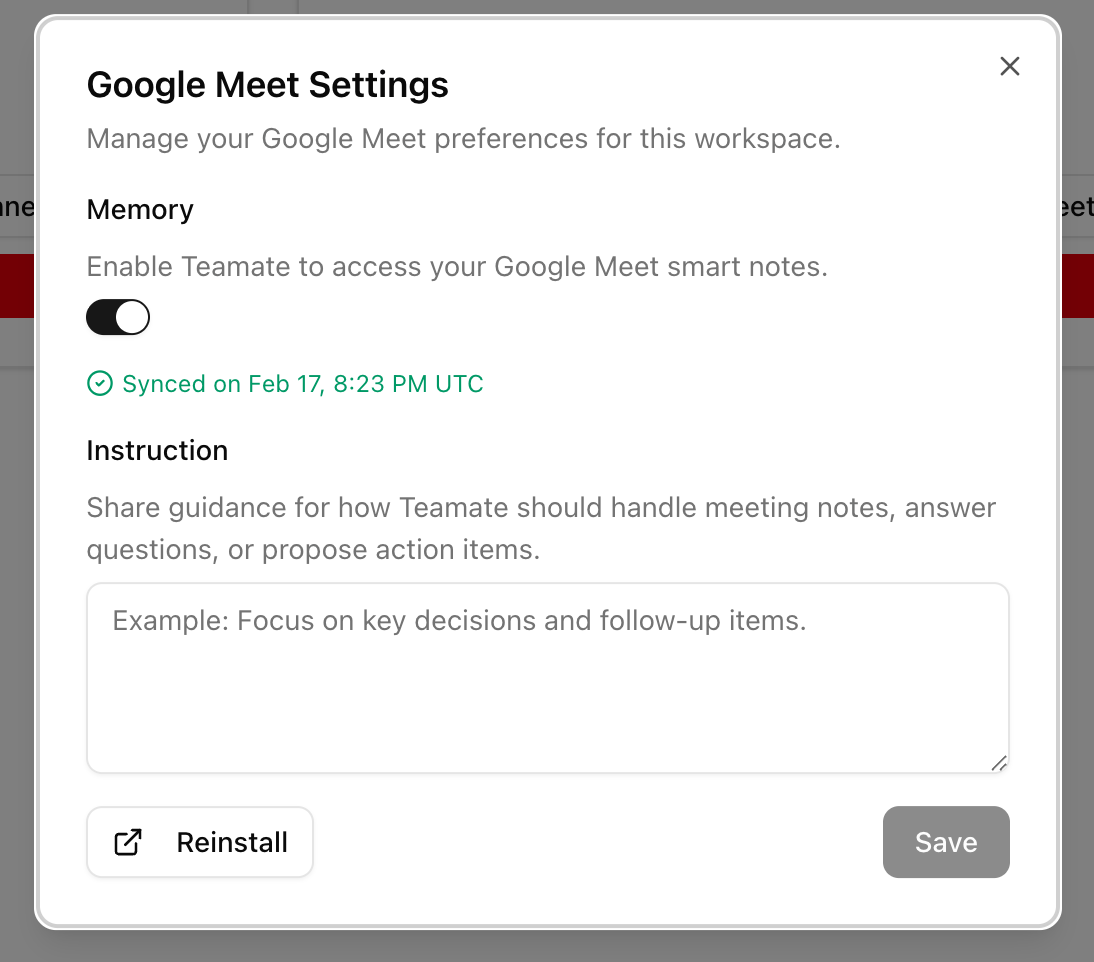 **Memory** — Toggle this on to allow Teamate to access your meeting summaries and smart notes. Once enabled, Teamate will begin syncing your past meetings. A sync status indicator will show you when the sync is complete.
**Instruction** — Tell Teamate how to use your meeting data. For example:
```
Focus on key decisions and follow-up items. When asked about a customer, summarize the latest call.
```
Click **Save** when done.
***
## Browse summaries and transcripts
Once memory is enabled and synced, click **Meetings** on the workspace card to browse your past meetings.
**Memory** — Toggle this on to allow Teamate to access your meeting summaries and smart notes. Once enabled, Teamate will begin syncing your past meetings. A sync status indicator will show you when the sync is complete.
**Instruction** — Tell Teamate how to use your meeting data. For example:
```
Focus on key decisions and follow-up items. When asked about a customer, summarize the latest call.
```
Click **Save** when done.
***
## Browse summaries and transcripts
Once memory is enabled and synced, click **Meetings** on the workspace card to browse your past meetings.
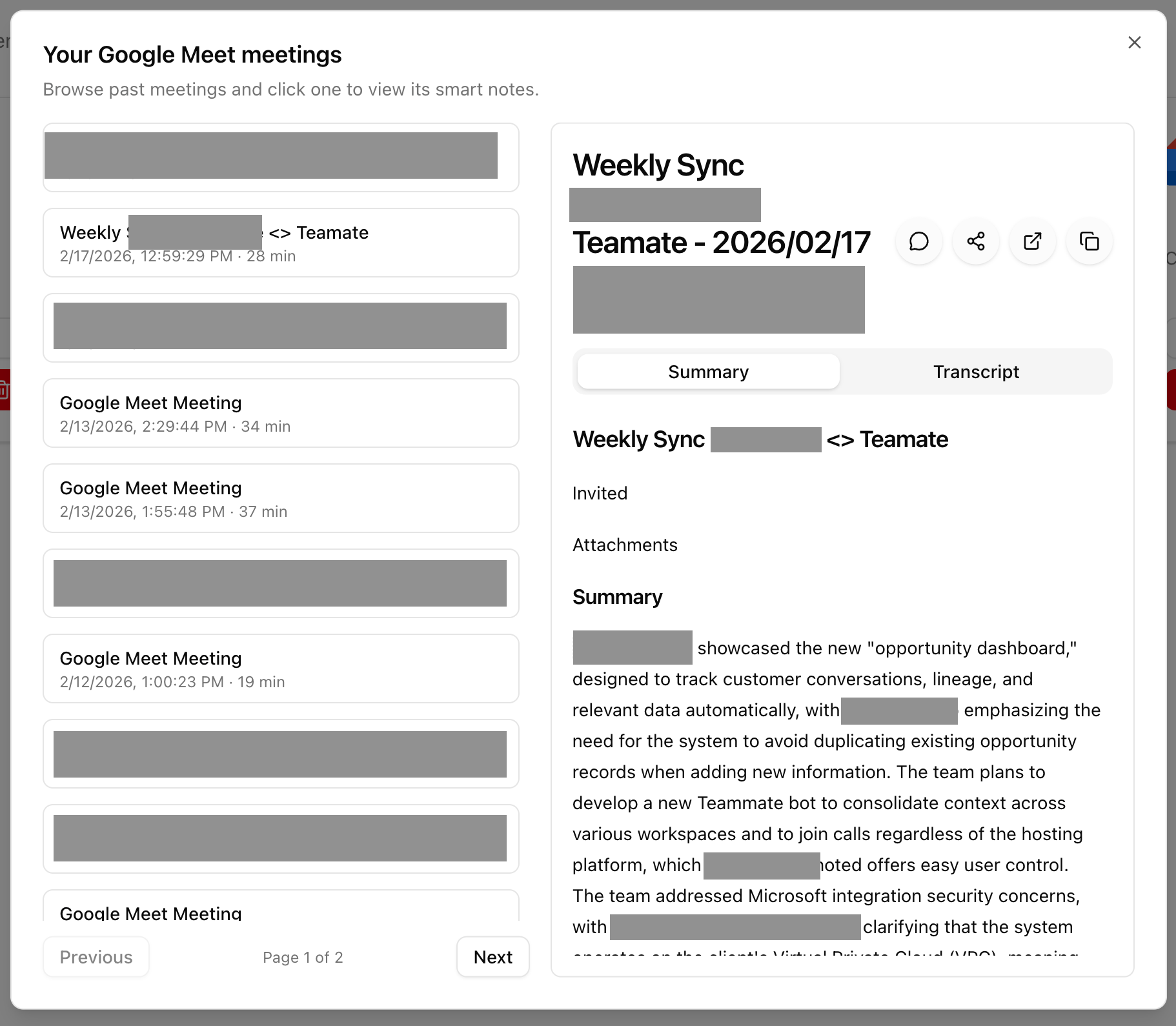 Select any meeting from the list to view:
* **Summary** — AI-generated notes from the meeting (powered by Zoom AI Companion or Google Meet smart notes)
* **Transcript** — Full meeting transcript
From the summary or transcript view you can:
* **Discuss with Teamate** — Opens a Slack thread with the meeting context pre-loaded so you can ask Teamate questions about the call
* **Share** — Share the summary to any Slack channel or DM
* **Open source doc** — Link directly to the original smart notes doc in Google Docs, or download the transcript
***
## How meeting memory works
When memory is enabled, Teamate periodically syncs your meeting summaries and uses them to answer questions in Slack. When a teammate asks something like *"What did we discuss with Acme Corp last week?"*, Teamate searches its memory — including your meeting notes — to give a grounded, sourced answer.
Meeting memory is **per-user** — each team member enables it individually in their own Settings dialog and controls their own instruction.
Select any meeting from the list to view:
* **Summary** — AI-generated notes from the meeting (powered by Zoom AI Companion or Google Meet smart notes)
* **Transcript** — Full meeting transcript
From the summary or transcript view you can:
* **Discuss with Teamate** — Opens a Slack thread with the meeting context pre-loaded so you can ask Teamate questions about the call
* **Share** — Share the summary to any Slack channel or DM
* **Open source doc** — Link directly to the original smart notes doc in Google Docs, or download the transcript
***
## How meeting memory works
When memory is enabled, Teamate periodically syncs your meeting summaries and uses them to answer questions in Slack. When a teammate asks something like *"What did we discuss with Acme Corp last week?"*, Teamate searches its memory — including your meeting notes — to give a grounded, sourced answer.
Meeting memory is **per-user** — each team member enables it individually in their own Settings dialog and controls their own instruction.