> ## Documentation Index
> Fetch the complete documentation index at: https://docs.teamate.app/llms.txt
> Use this file to discover all available pages before exploring further.
# Quickstart
> Set up Teamate in Slack in under 5 minutes
## Overview
This guide walks you through signing up, connecting Slack, configuring Teamate, and adding it to your channels.
***
## 1) Sign up
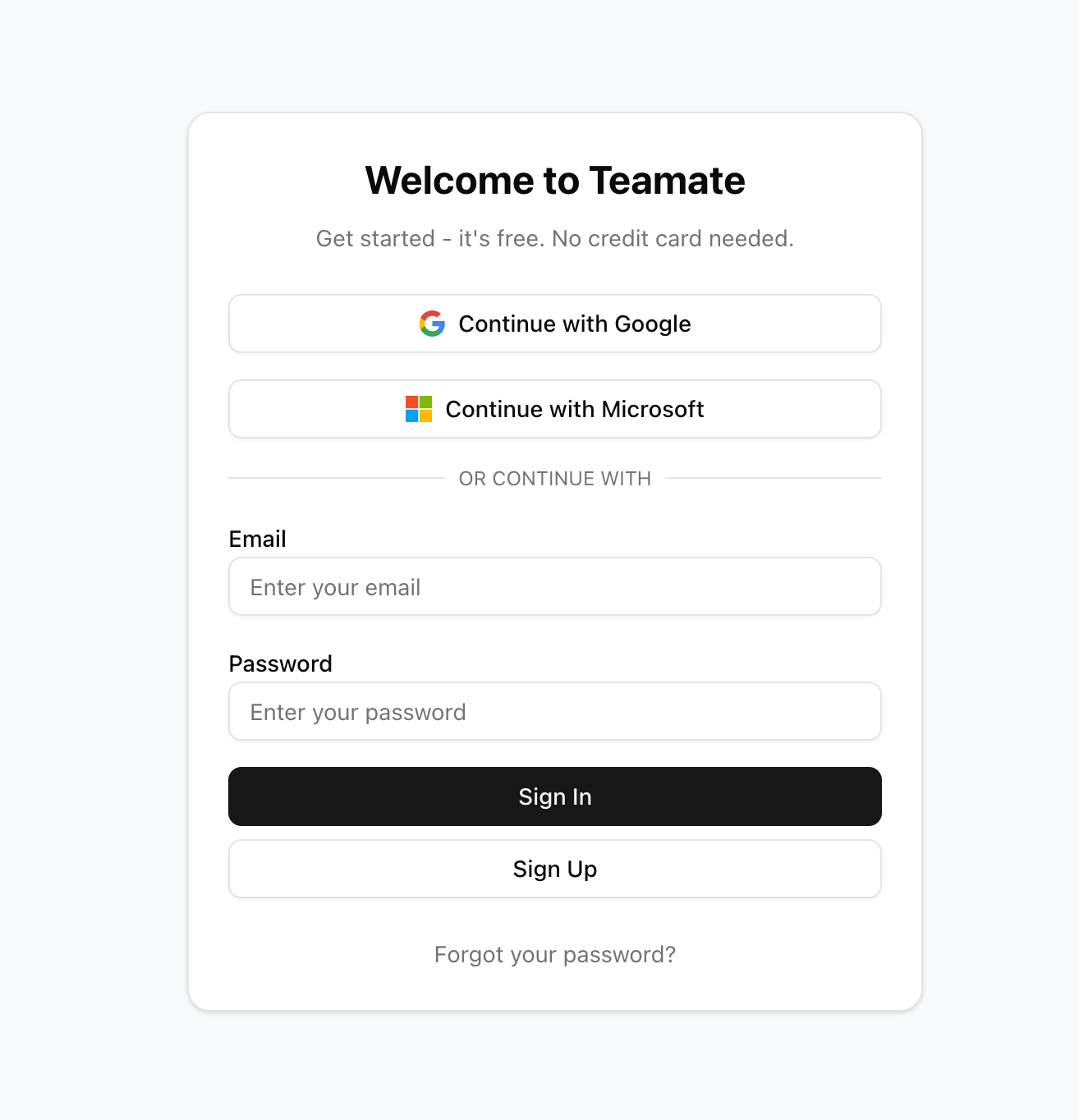
Go to [my.teamate.app](https://my.teamate.app) and create your Teamate account. You can sign up with Google, Microsoft, or email.
 ***
## 2) Connect Slack
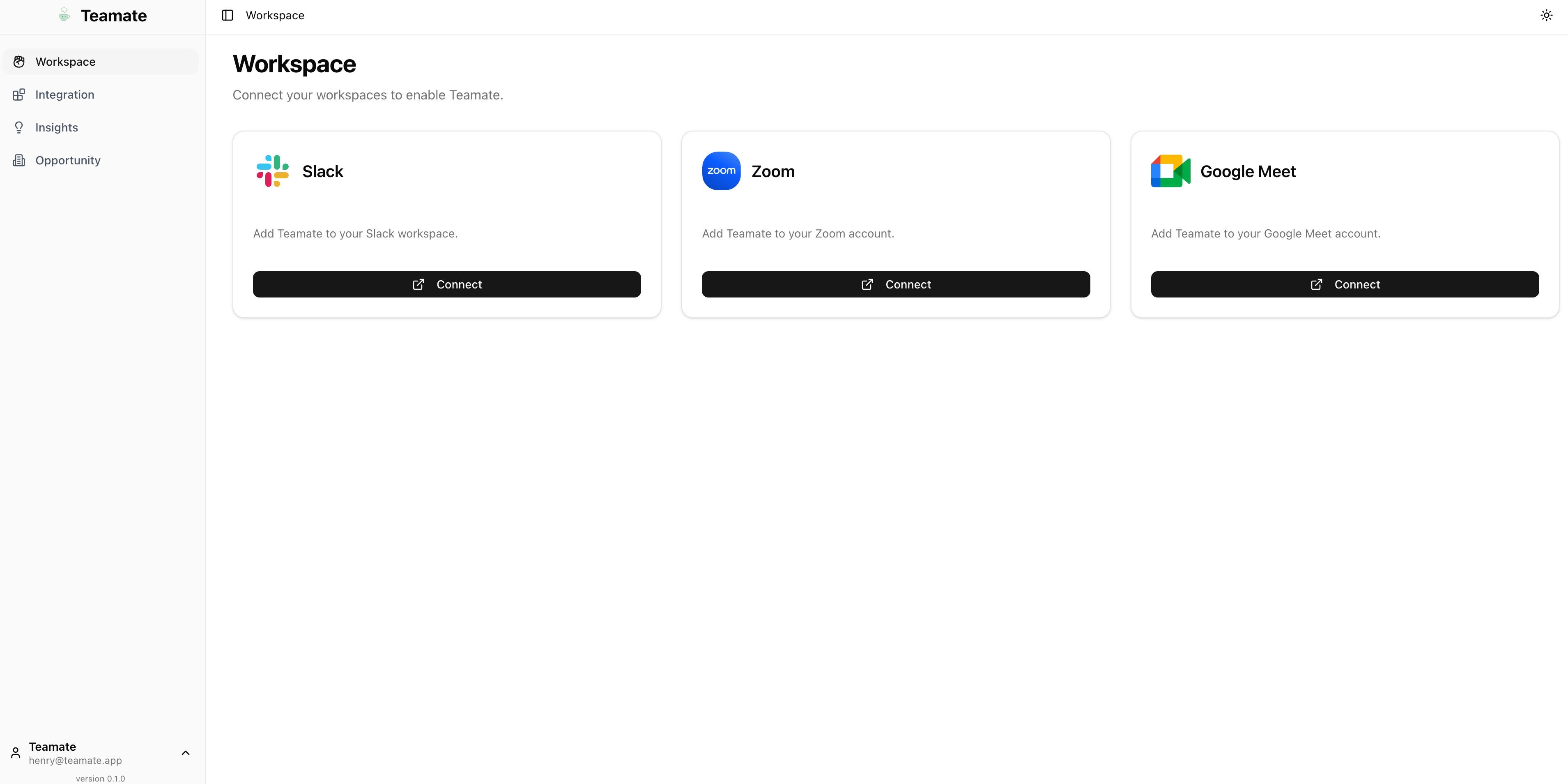
After signing in, you'll land on the **Workspace** page. Click **Connect** on the Slack card.
***
## 2) Connect Slack
After signing in, you'll land on the **Workspace** page. Click **Connect** on the Slack card.
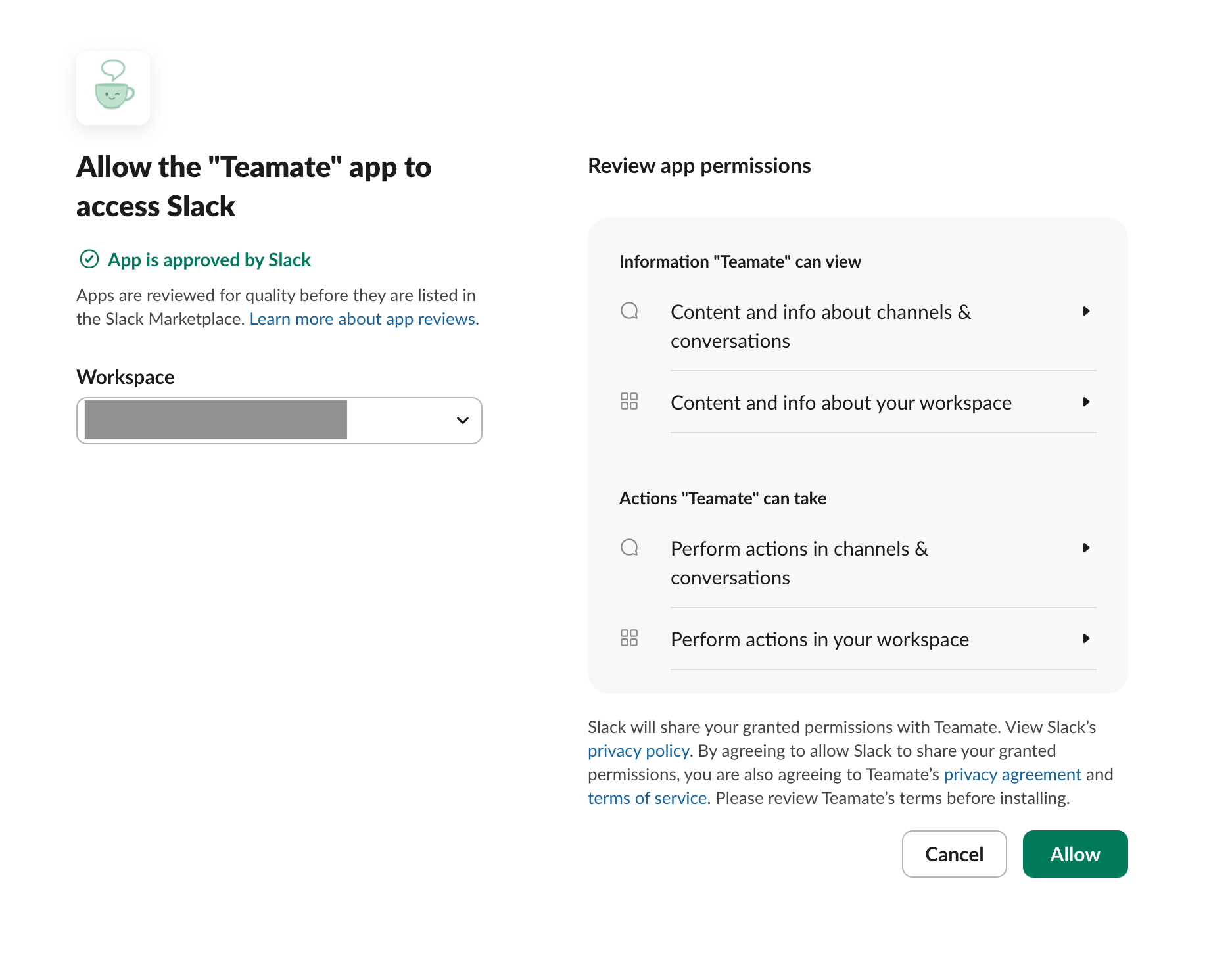
 You'll be redirected to Slack to sign in to your workspace.
 Review the permissions Teamate needs and click **Allow**.
 ***
## 3) Configure Teamate
Once connected, click **Settings** on the Slack card to configure how Teamate behaves across your workspace.
Key settings:
* **General instruction** — High-level guidance for Teamate. Think of this as a system prompt for your workspace. For example:
```
When scheduling meetings, default to 30 minutes and Google Meet unless specified otherwise.
```
* **Trigger mode** — Controls when Teamate responds:
* **Smart** (default): Teamate decides proactively when to respond.
* **Explicit**: Teamate only responds when directly mentioned with `@Teamate`.
* **AI model** — Choose the model for your workspace.
### Channel-specific settings
Click **Channels** on the Slack card to fine-tune Teamate's behavior per channel. Each channel can have its own instruction, trigger mode, AI model, and memory toggle.
***
## 3) Configure Teamate
Once connected, click **Settings** on the Slack card to configure how Teamate behaves across your workspace.
Key settings:
* **General instruction** — High-level guidance for Teamate. Think of this as a system prompt for your workspace. For example:
```
When scheduling meetings, default to 30 minutes and Google Meet unless specified otherwise.
```
* **Trigger mode** — Controls when Teamate responds:
* **Smart** (default): Teamate decides proactively when to respond.
* **Explicit**: Teamate only responds when directly mentioned with `@Teamate`.
* **AI model** — Choose the model for your workspace.
### Channel-specific settings
Click **Channels** on the Slack card to fine-tune Teamate's behavior per channel. Each channel can have its own instruction, trigger mode, AI model, and memory toggle.
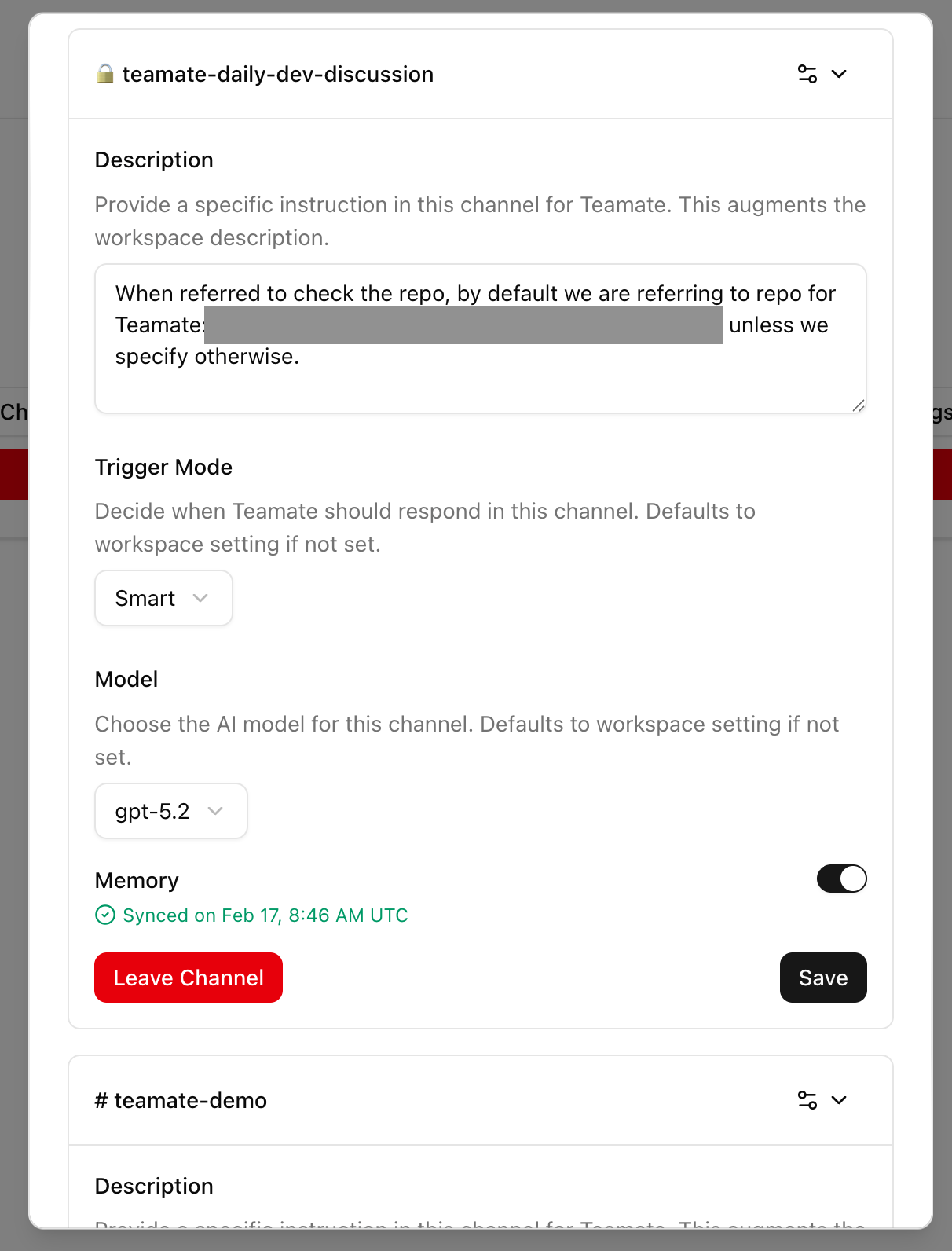 Settings here override the workspace defaults for that channel. Use this to give Teamate channel-specific context — for example, pointing it to a specific GitHub repo for your dev channel.
**Memory** — Toggle this on to allow Teamate to remember conversations in this channel and incorporate key information into the underlying context layer.
***
## 4) Add Teamate to channels
There are three ways to add Teamate to a channel:
### Option A: Mention @Teamate
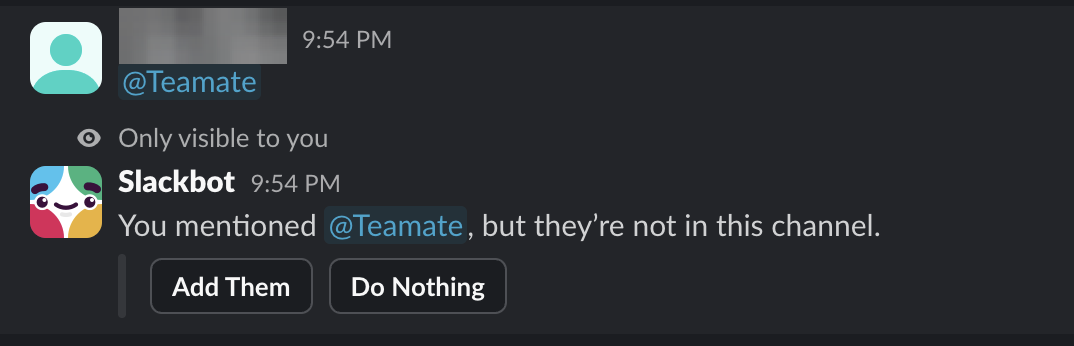
Type `@Teamate` in any channel. Slack will prompt you to add the app — click **Add Them**.
Settings here override the workspace defaults for that channel. Use this to give Teamate channel-specific context — for example, pointing it to a specific GitHub repo for your dev channel.
**Memory** — Toggle this on to allow Teamate to remember conversations in this channel and incorporate key information into the underlying context layer.
***
## 4) Add Teamate to channels
There are three ways to add Teamate to a channel:
### Option A: Mention @Teamate
Type `@Teamate` in any channel. Slack will prompt you to add the app — click **Add Them**.
 ### Option B: From channel settings
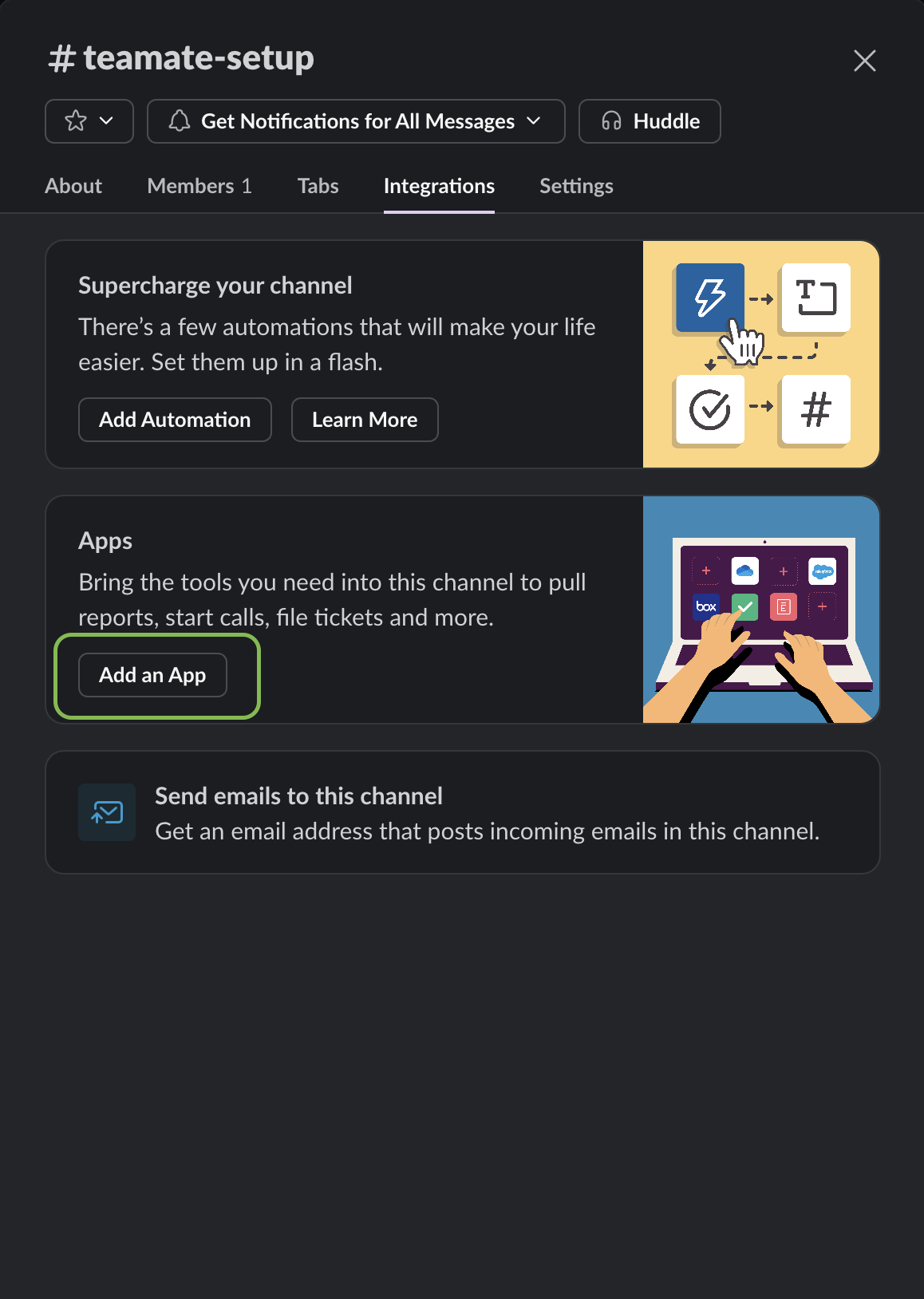
1. Open the channel, click the channel name at the top, then go to the **Integrations** tab and click **Add an App**.
### Option B: From channel settings
1. Open the channel, click the channel name at the top, then go to the **Integrations** tab and click **Add an App**.
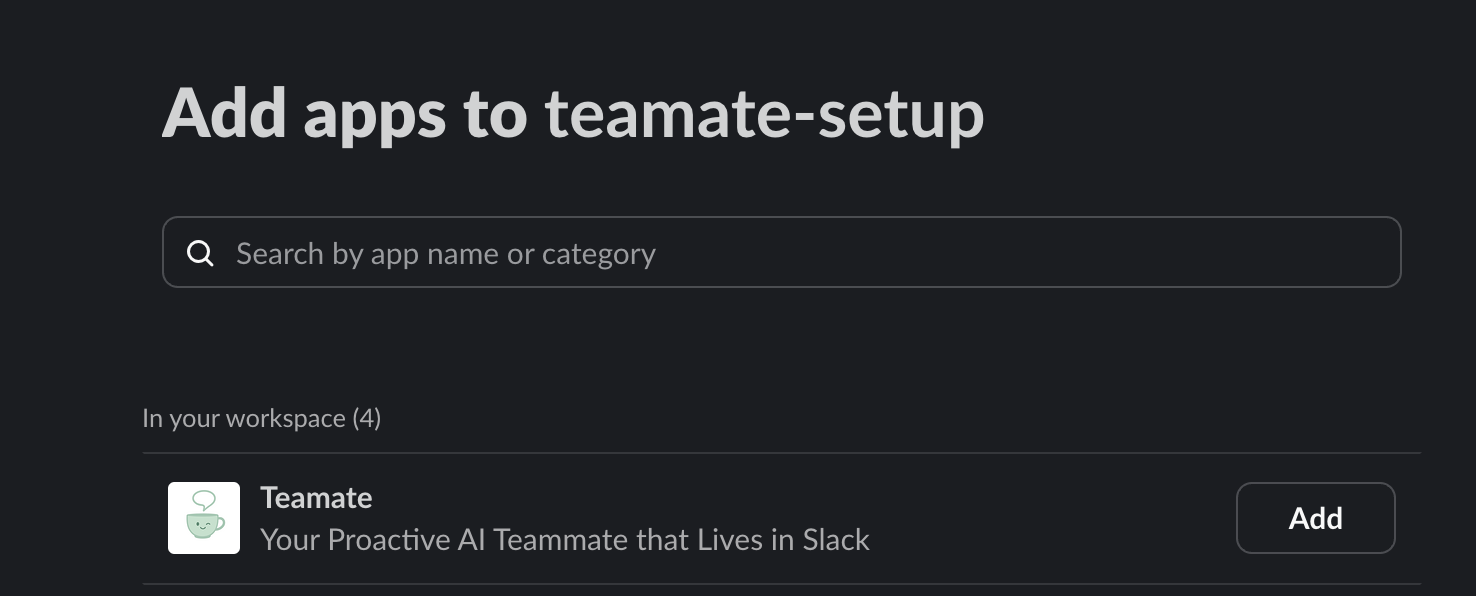
 2. Search for **Teamate** and click **Add**.
 ### Option C: Slash command
Type `/invite @Teamate` in any channel.
***
## 5) Manage your team
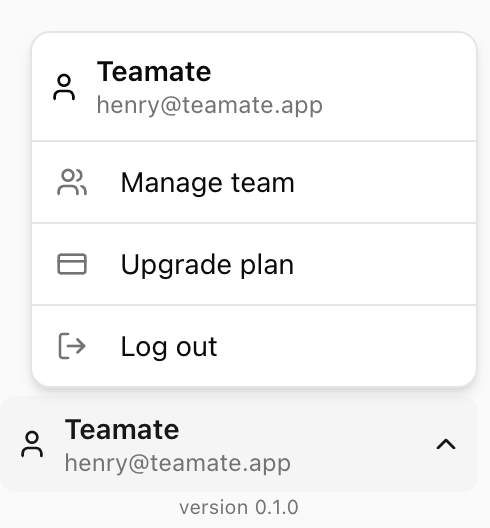
Click your account name in the bottom-left sidebar to access account options, including **Manage team** and **Upgrade plan**.
### Option C: Slash command
Type `/invite @Teamate` in any channel.
***
## 5) Manage your team
Click your account name in the bottom-left sidebar to access account options, including **Manage team** and **Upgrade plan**.
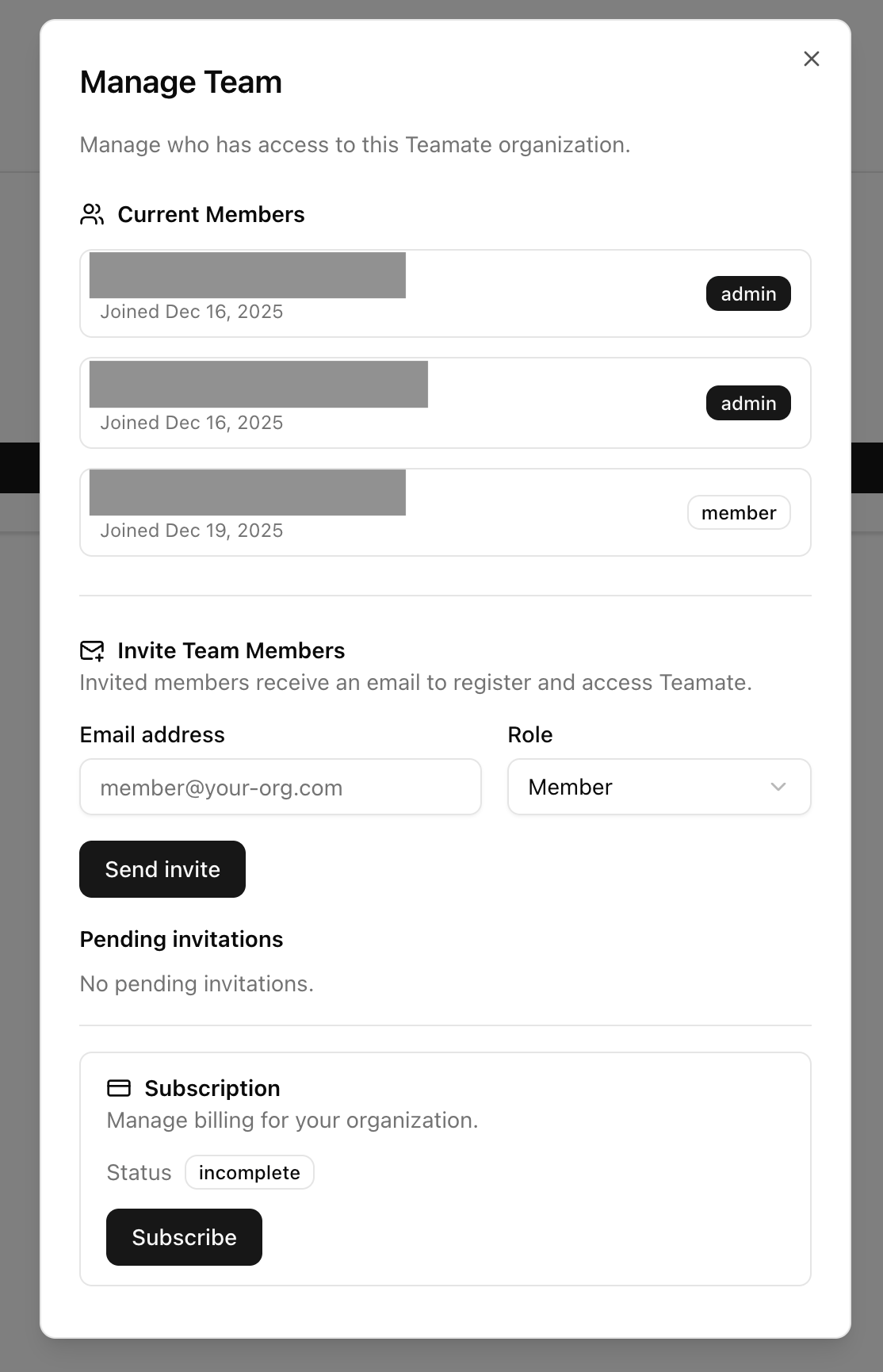
 From the **Manage Team** dialog, you can:
* View current members and their roles (Admin or Member)
* Invite new teammates by email
* Manage your subscription
From the **Manage Team** dialog, you can:
* View current members and their roles (Admin or Member)
* Invite new teammates by email
* Manage your subscription
 Team management and invitations are available to **Admin** users only.
***
## You're all set!
Teamate is now live in your Slack workspace. Head to the next guides to connect meetings and enable integrations for even more capability.
Give Teamate memory from your Zoom and Google Meet calls.
Let Teamate take action in your tools.
Team management and invitations are available to **Admin** users only.
***
## You're all set!
Teamate is now live in your Slack workspace. Head to the next guides to connect meetings and enable integrations for even more capability.
Give Teamate memory from your Zoom and Google Meet calls.
Let Teamate take action in your tools.