
Overview
Integrations let Teamate take action in the tools your team already uses — creating GitHub issues, sending emails, updating calendars, logging to HubSpot, and more. Each integration exposes a set of tools that Teamate can invoke on your behalf directly from Slack. Go to my.teamate.app/integration to manage integrations.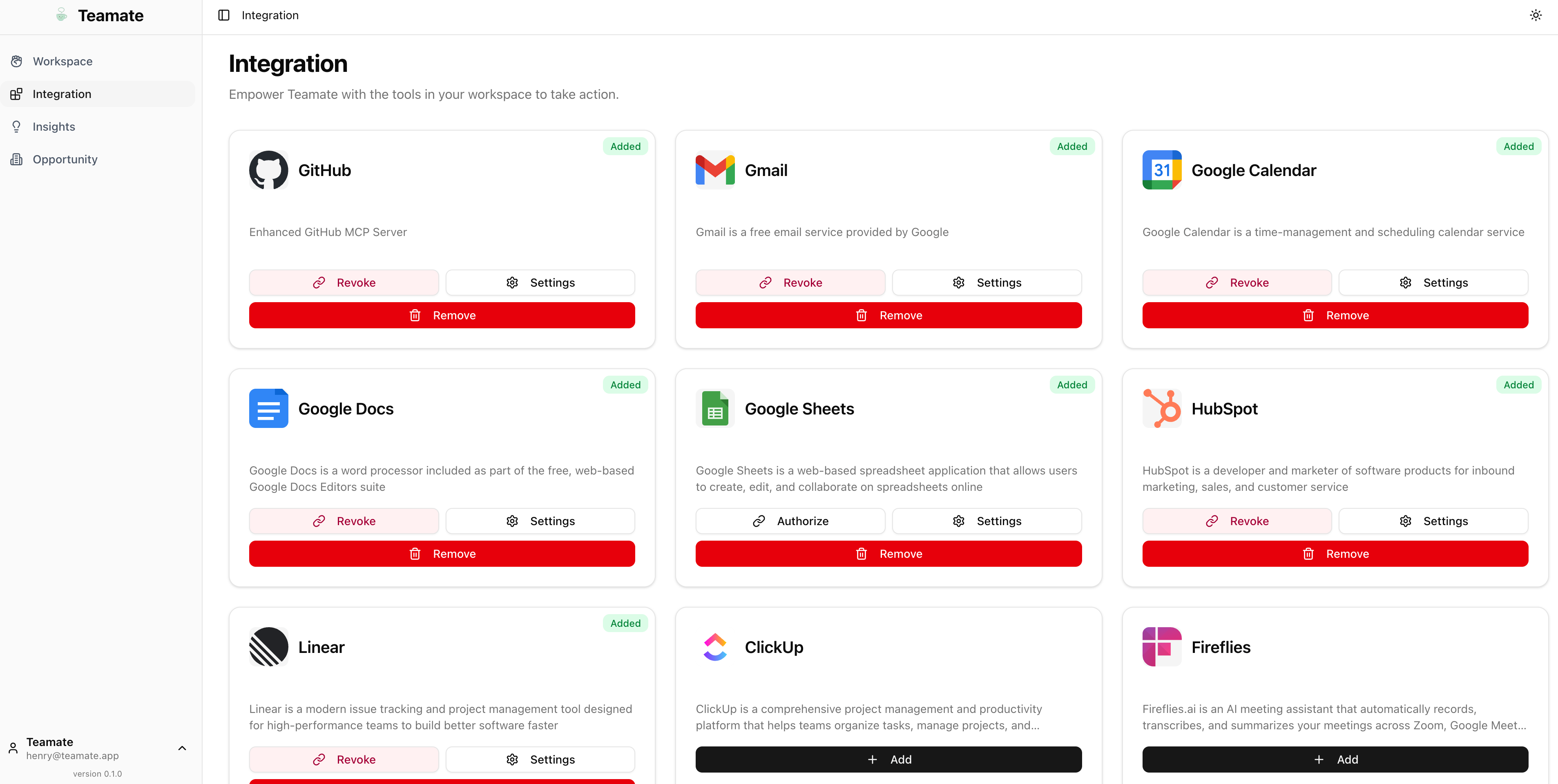
Add an integration
Only Admin users can add or remove integrations for the workspace.
Authorize an integration
Many integrations require each user to authorize their own account before Teamate can act on their behalf (e.g., sending from your Gmail, creating issues under your GitHub account). From the Teamate App Home in Slack: Open the Teamate app in Slack’s sidebar and go to the Home tab. The Authorizations section shows all integrations and their status for your account.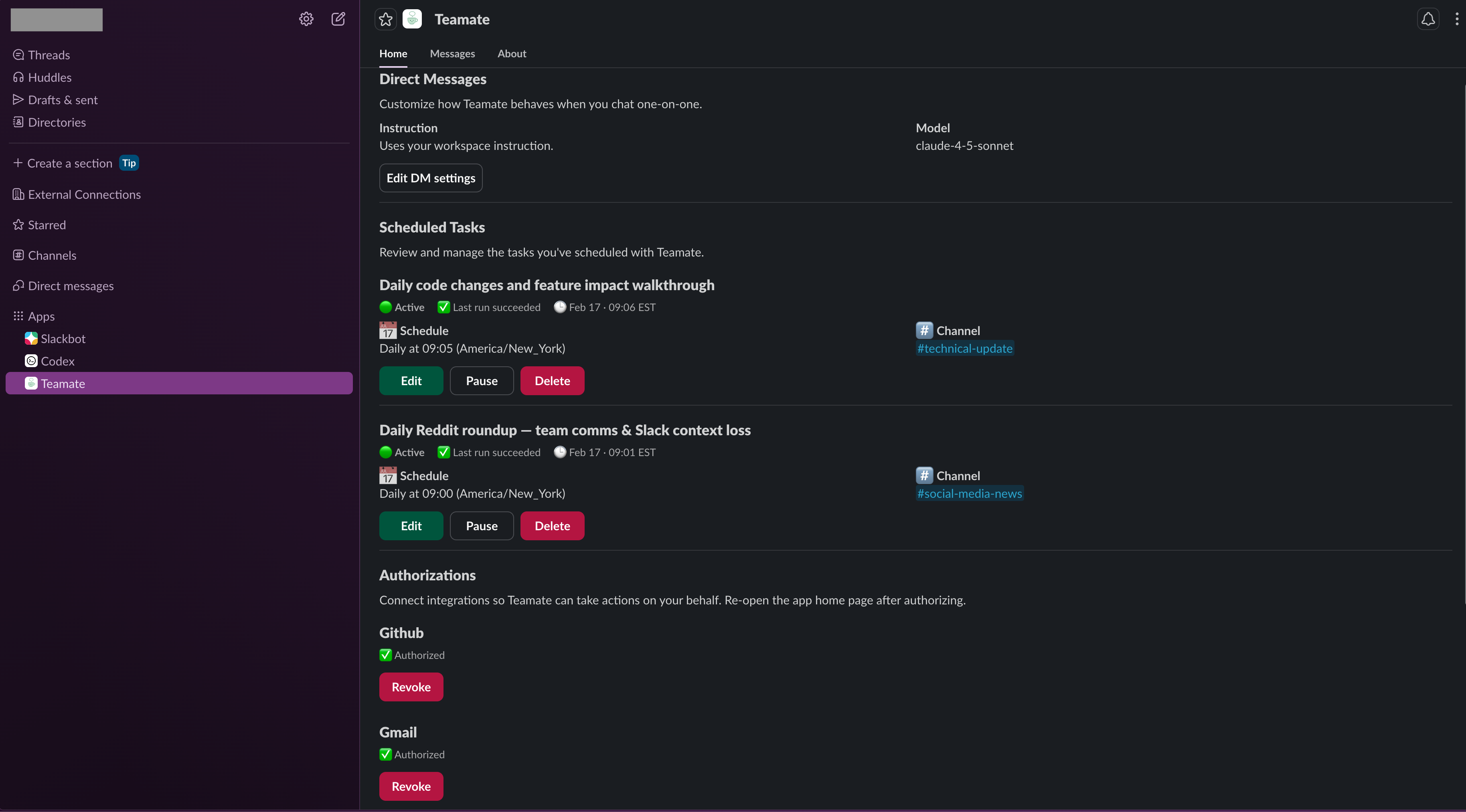
Settings and tool list
Click Settings on any integration card to view:- Authorization tab (Admins only) — See which team members have authorized their accounts for this integration, and revoke access if needed.
- Tools tab — Browse the full list of actions Teamate can perform for that integration.
How tool approval works
When Teamate wants to use an integration tool that modifies external state (e.g., create a Linear issue, send an email), it asks for your approval first — directly in Slack as an ephemeral message:- Approve — Teamate proceeds with the action
- Reject — Teamate cancels the action
- Tell what to do differently — Give Teamate a correction before it acts