
Overview
Teamate can connect to your Zoom and Google Meet accounts to ingest meeting summaries, smart notes, and transcripts. Once enabled, Teamate builds memory from your meetings — so it can answer questions about past calls, surface action items, and provide context directly in Slack. Both Zoom and Google Meet follow the same setup flow.Connect Google Meet
On the Workspace page, click Connect on the Google Meet card. You’ll be redirected to Google’s OAuth screen. Review the permissions and click Continue.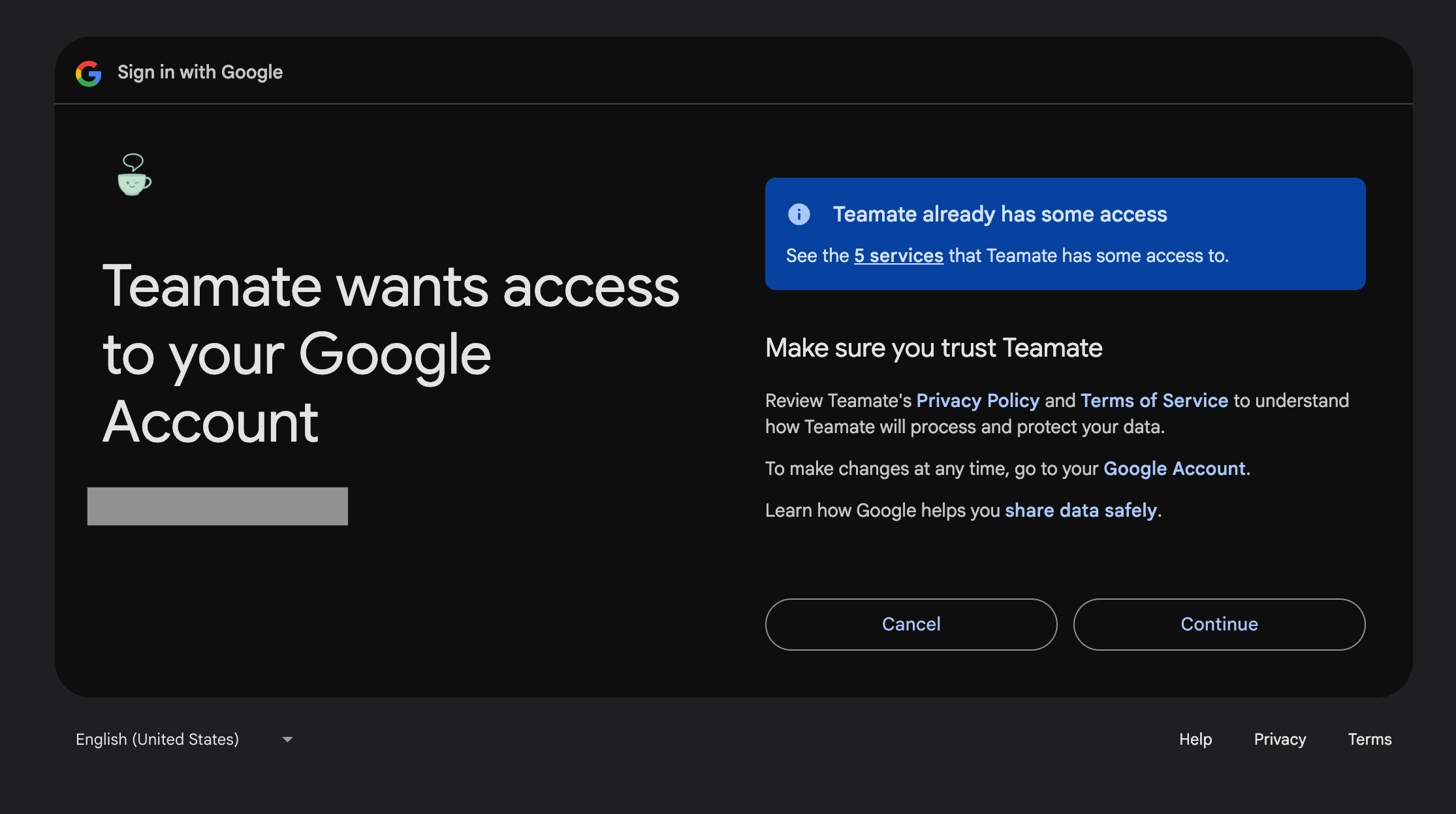
Zoom follows the same flow — click Connect on the Zoom card and authorize via Zoom’s OAuth screen.
Enable memory and add an instruction
After connecting, click Settings on the meeting card to configure memory and add a custom instruction.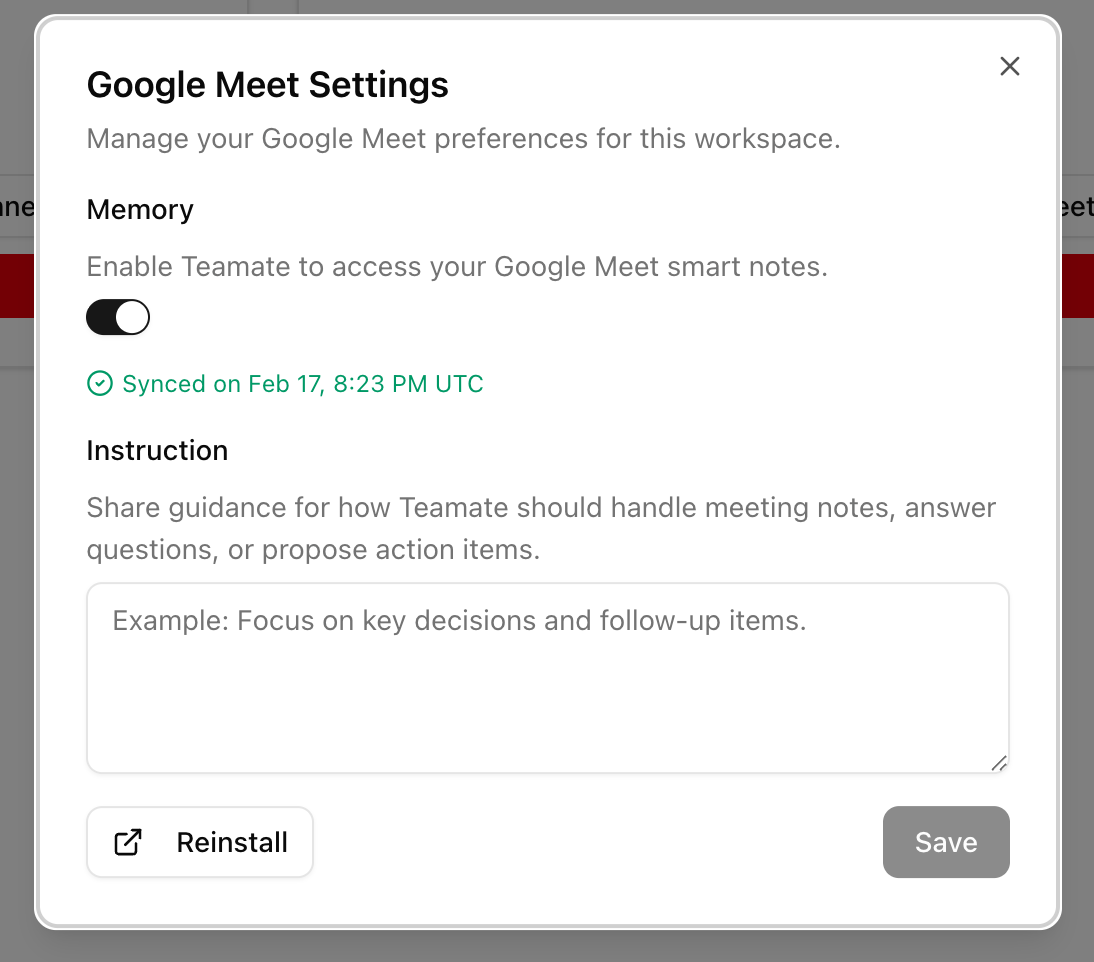
Browse summaries and transcripts
Once memory is enabled and synced, click Meetings on the workspace card to browse your past meetings.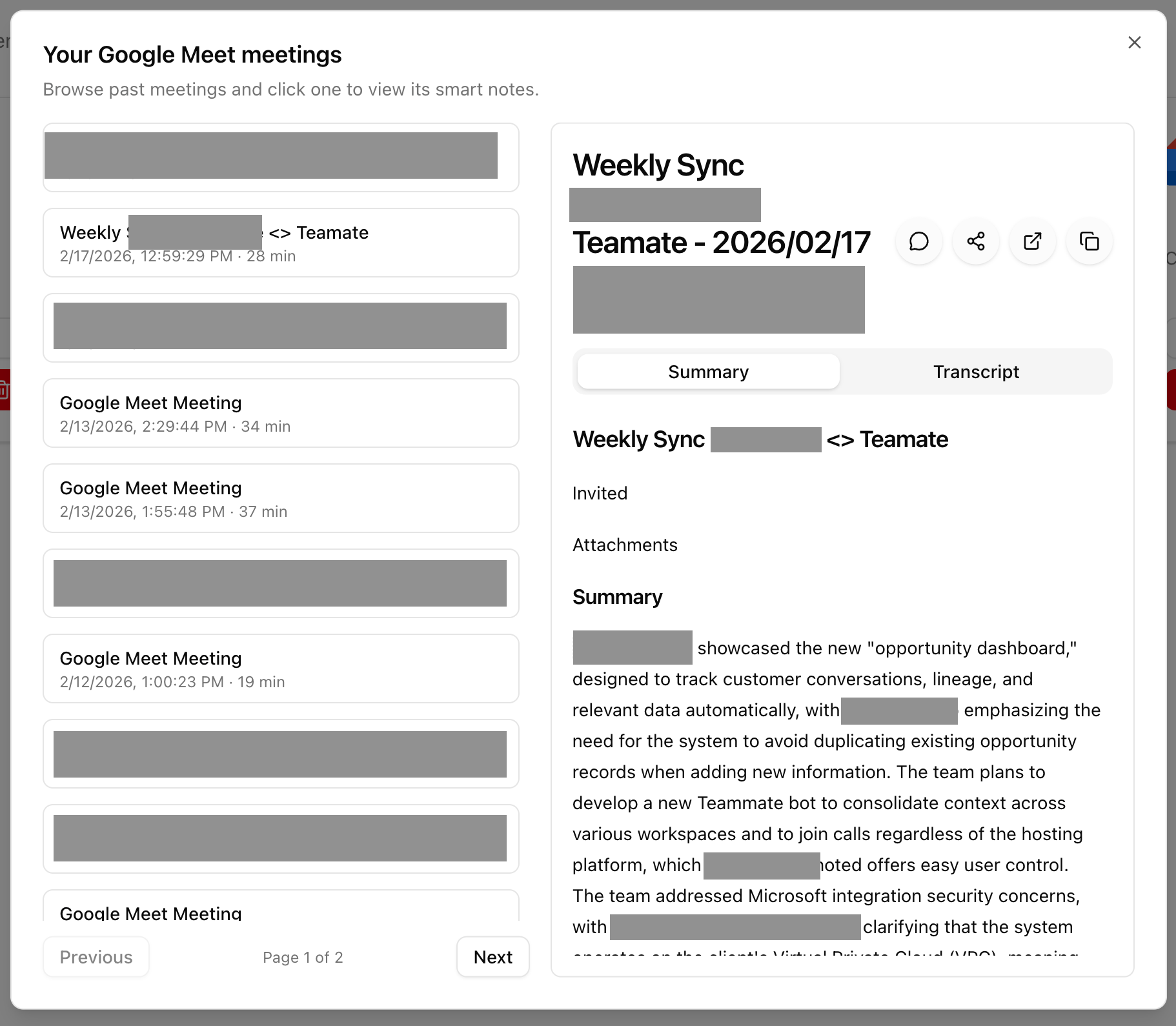
- Summary — AI-generated notes from the meeting (powered by Zoom AI Companion or Google Meet smart notes)
- Transcript — Full meeting transcript
- Discuss with Teamate — Opens a Slack thread with the meeting context pre-loaded so you can ask Teamate questions about the call
- Share — Share the summary to any Slack channel or DM
- Open source doc — Link directly to the original smart notes doc in Google Docs, or download the transcript