
Overview
Teamate lives in your Slack workspace and is always watching. You can interact with it directly via DM, mention it in any channel, or have it proactively chime in on group discussions. Here are the most common ways people use Teamate.DM with Teamate
For private, focused conversations, DM Teamate directly. Teamate treats every DM as a one-on-one conversation and uses your workspace instruction, your meeting memory, and any authorized integrations to answer.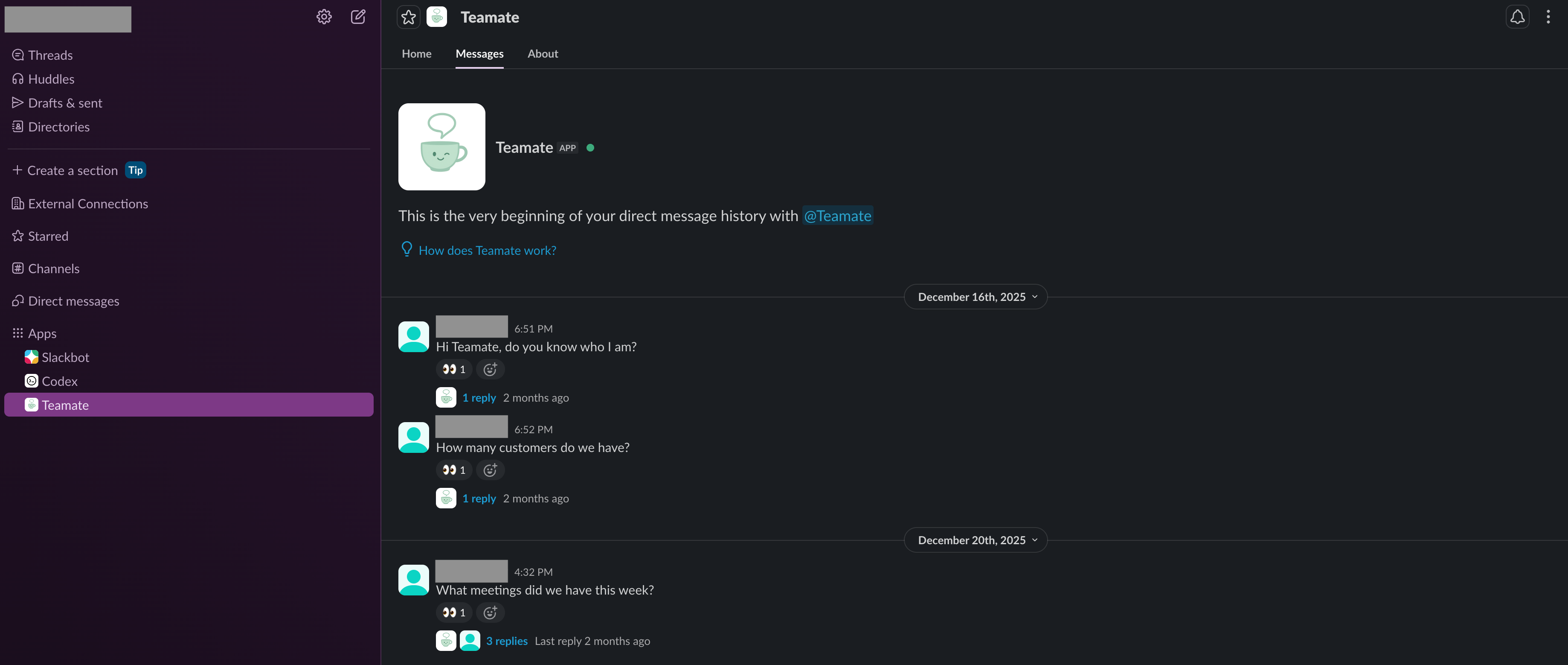
Group discussions
In Smart mode, Teamate actively listens to conversations in channels and chimes in when it has something useful to add — without needing to be @-mentioned. In Explicit mode, it responds only when mentioned.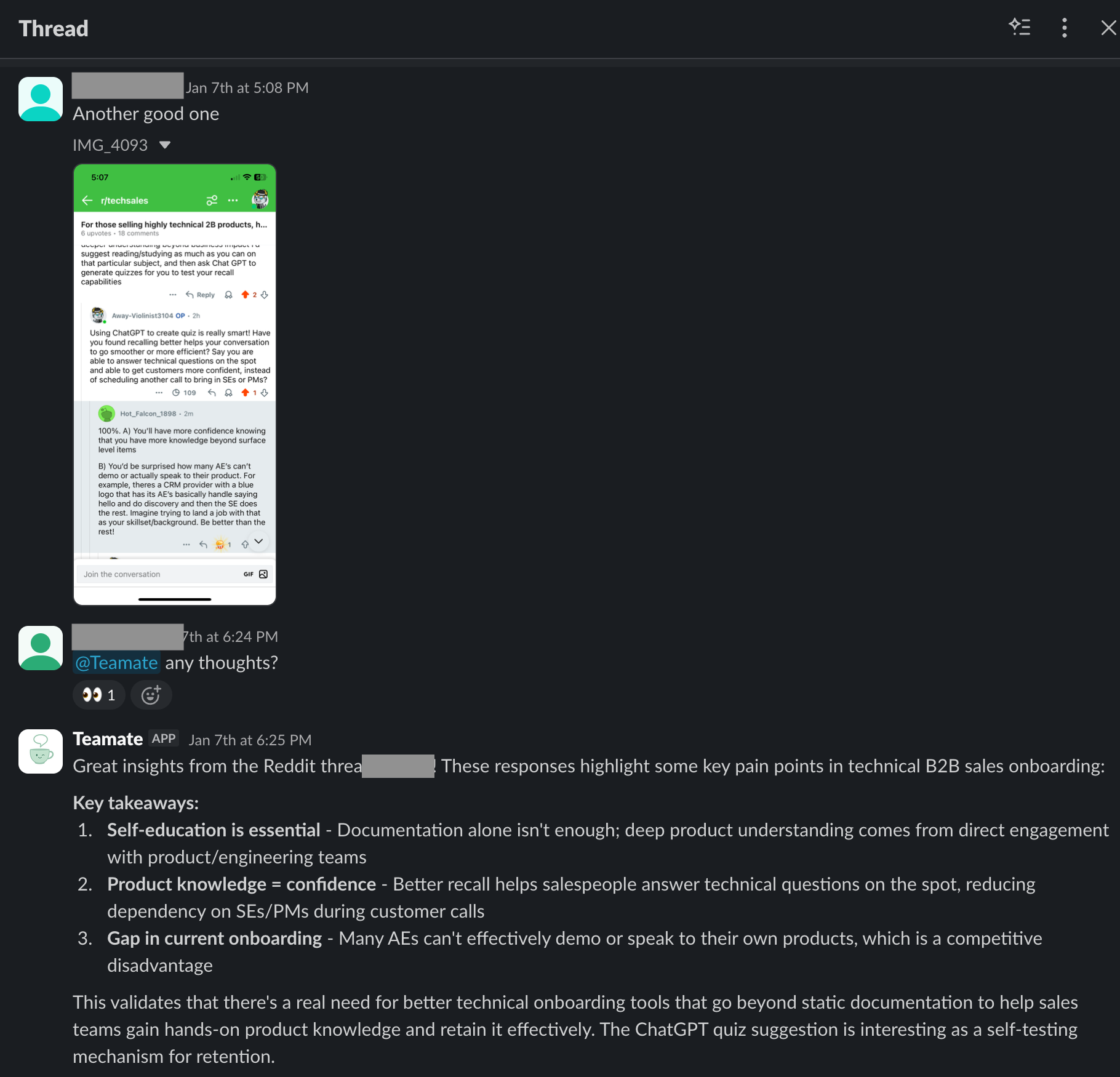
Recall context from past conversations and meetings
Teamate maintains memory across your Slack channels and meeting recordings. Ask it about anything that’s been discussed — it will search back through prior threads and meeting summaries to find a grounded answer.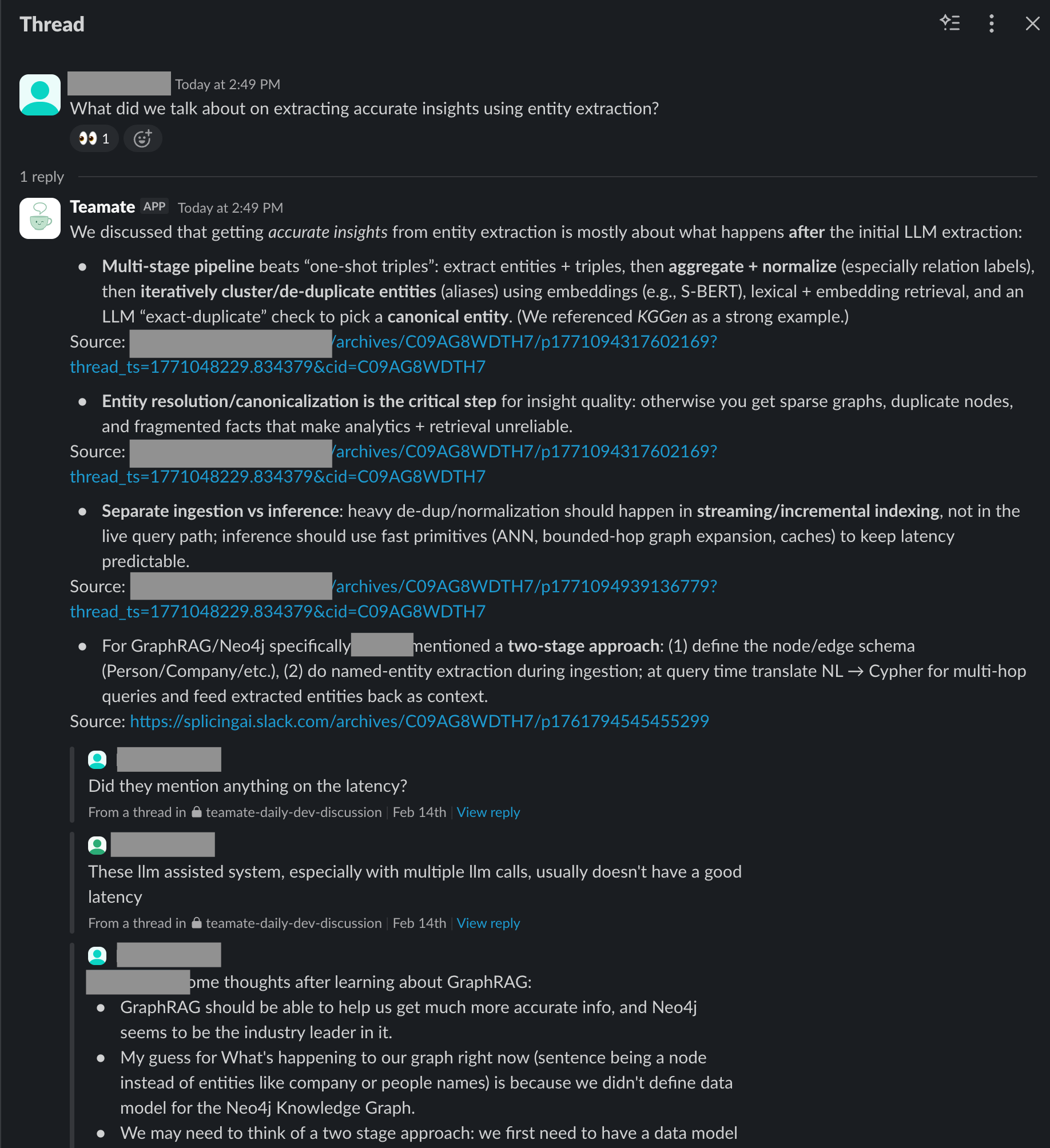
Take actions on your behalf
When you ask Teamate to do something that requires a tool (like creating a GitHub issue, sending a calendar invite, or sending an email), Teamate will ask for your approval first.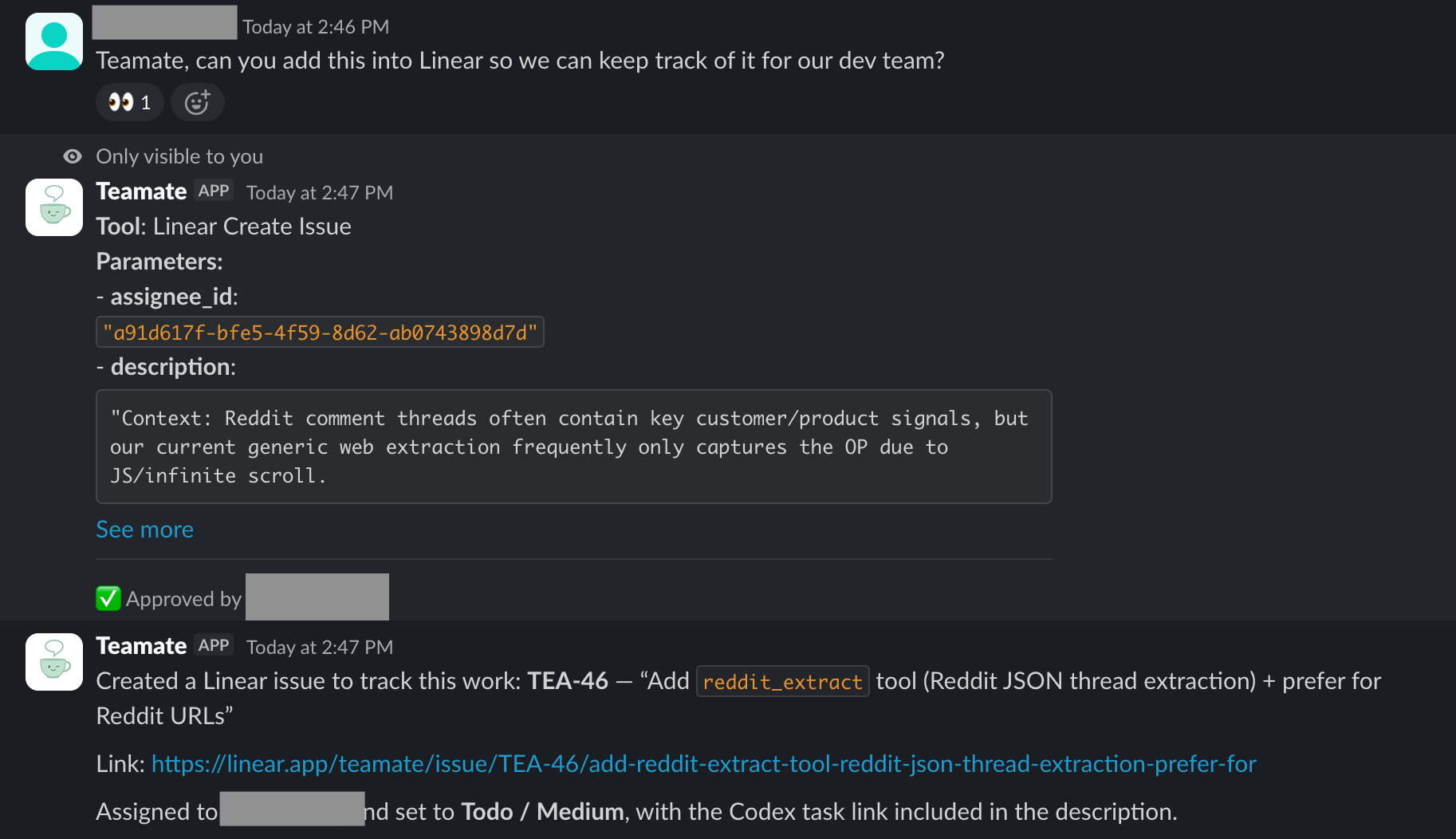
- What tool Teamate wants to use
- Exactly what parameters it will pass (e.g., issue title, body, assignee)
- Approve / Reject buttons
Tools that only read data (like search) run automatically without asking for approval.
Set reminders
Ask Teamate to remind you or a teammate about anything — it will schedule the reminder and confirm in thread.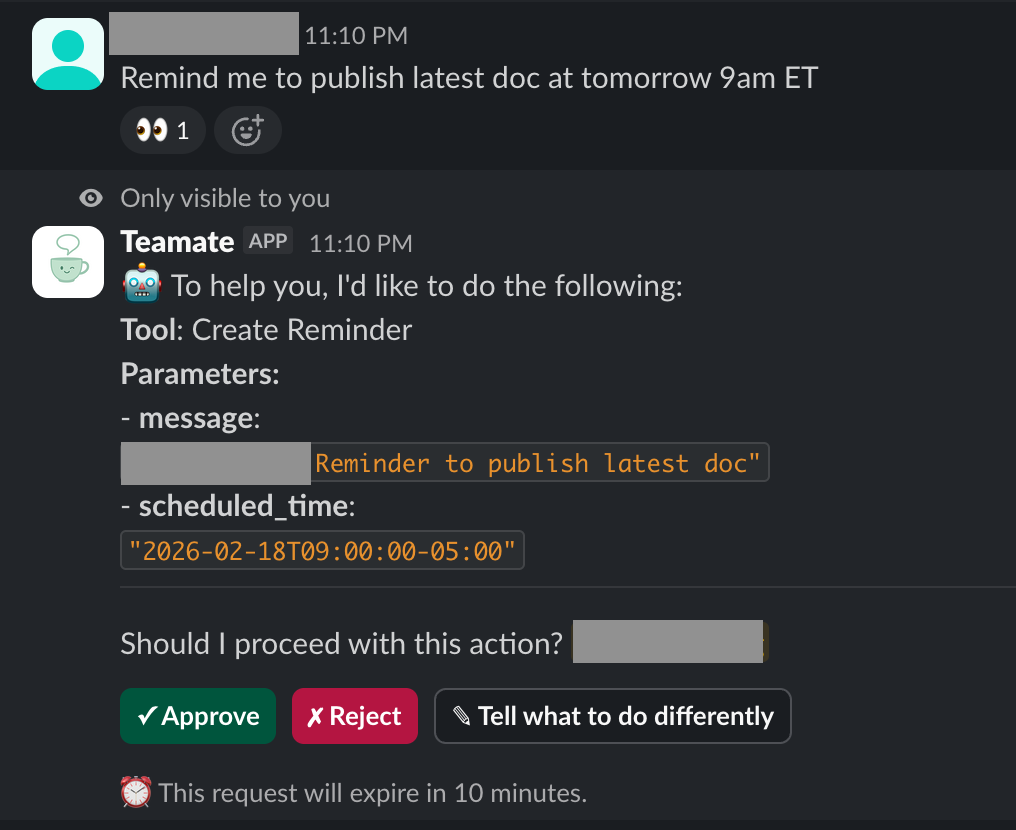
Scheduled tasks
For recurring work, Teamate can run tasks on a schedule — like posting a daily code changes walkthrough to your #technical-update channel, or a Reddit roundup to #social-media-news. You can manage your scheduled tasks from the Teamate App Home in Slack.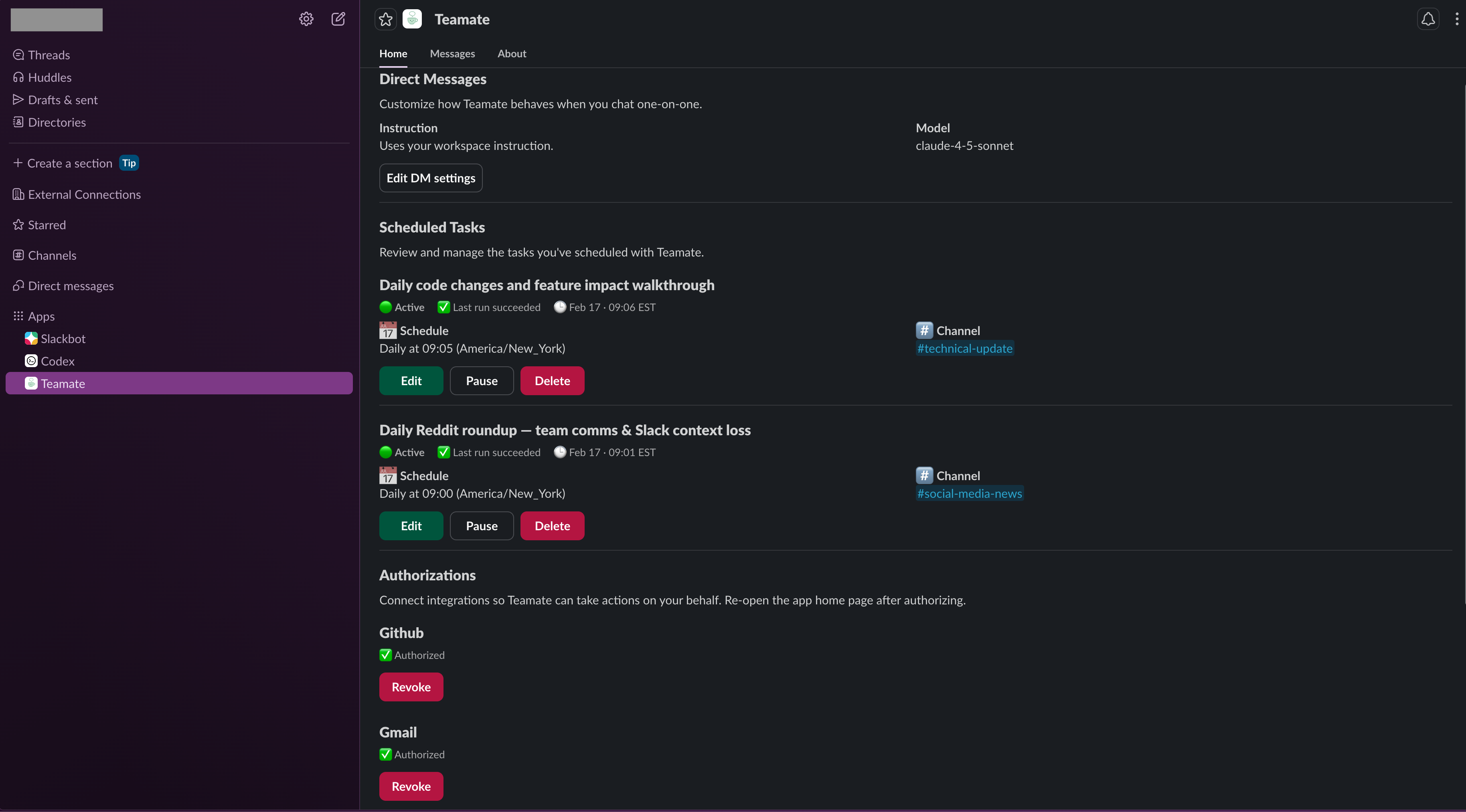
- Title — What the task does
- Status — Active, Paused, or last run result
- Schedule — When it runs (e.g., Daily at 09:05 America/New_York)
- Channel — Where the output is posted